
本节代码对应 GitHub 分支: chapter3
# 一、轮播组件开发
现在来开发 recommend 组件,首先进入到 src 目录下 application/Recommend/index.js 中:
import React from 'react';
import Slider from '../../components/slider';

function Recommend () {

  //mock 数据
  const bannerList = [1,2,3,4].map (item => {
    return { imageUrl: "http://p1.music.126.net/ZYLJ2oZn74yUz5x8NBGkVA==/109951164331219056.jpg" }
  });

  return (
    <div>
      <Slider bannerList={bannerList}></Slider>
    </div>
  )
}

export default React.memo (Recommend);
现在就可以着手编写 slider 组件的具体内容了。首先安装一个插件:
npm install swiper --save
接下来,在 slider/index.js 中:
//components/slider/index.js
import React, { useEffect, useState } from 'react';
import { SliderContainer } from './style';
import "swiper/css/swiper.css";
import Swiper from "swiper";

function Slider (props) {
  const [sliderSwiper, setSliderSwiper] = useState (null);
  const { bannerList } = props;

  useEffect (() => {
    if (bannerList.length && !sliderSwiper){
        let newSliderSwiper = new Swiper(".slider-container", {
          loop: true,
          autoplay: {
            delay: 3000,
            disableOnInteraction: false,
          },
          pagination: {el:'.swiper-pagination'},
        });
        setSliderSwiper(newSliderSwiper);
    }
  }, [bannerList.length, sliderSwiper]);

  return (
    <SliderContainer>
      <div className="slider-container">
        <div className="swiper-wrapper">
          {
            bannerList.map (slider => {
              return (
                <div className="swiper-slide" key={slider.imageUrl}>
                  <div className="slider-nav">
                    <img src={slider.imageUrl} width="100%" height="100%" alt="推荐" />
                  </div>
                </div>
              );
            })
          }
        </div>
        <div className="swiper-pagination"></div>
      </div>
    </SliderContainer>
  );
}

export default React.memo (Slider);
对应的 style.js 文件:
import styled from'styled-components';
import style from '../../assets/global-style';

export const SliderContainer = styled.div`
  position: relative;
  box-sizing: border-box;
  width: 100%;
  height: 100%;
  margin: auto;
  background: white;
  .before {
    position: absolute;
    top: 0;
    height: 60%;
    width: 100%;
    background: ${style ["theme-color"]};
  }
  .slider-container {
    position: relative;
    width: 98%;
    height: 160px;
    overflow: hidden;
    margin: auto;
    border-radius: 6px;
    .slider-nav {
      position: absolute;
      display: block;
      width: 100%;
      height: 100%;
    }
    .swiper-pagination-bullet-active {
      background: ${style ["theme-color"]};
    }
  }
`
现在打开页面可以看到这个效果:
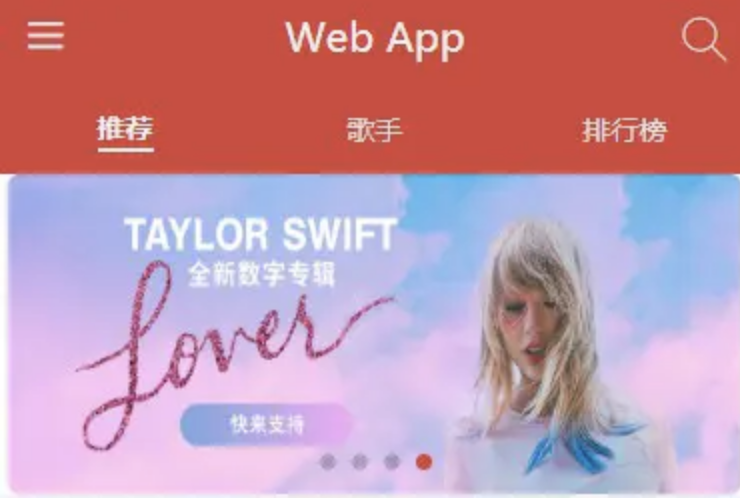
轮播的功能已经具备,但是这个效果并不是我们想要的,我们希望它是两边并不是完全空白,而是有一部分红色做衬托,如图:
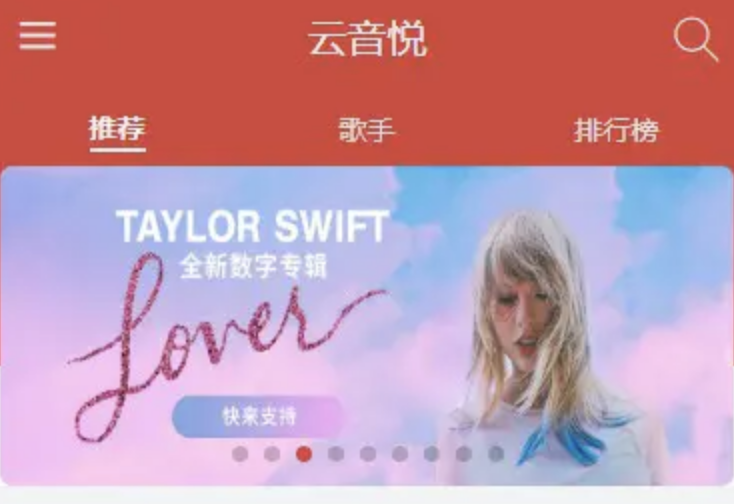
这个效果如何来实现?如果说单纯去增加 Home 组件的高度,那么其他的组件并不需要下面的这些红色背景,显然不合适,我们只能在 slider 组件上做一些手脚。 我们在 SliderContainer 标签内新建一个 div:
<div className="before"></div>
样式已经写在上面的 style.js 中了,大家可以翻到上面看看,还是比较 tricky 的一个操作,相当于另外做了一层遮罩,我们之后开发歌手详情页同样会用到这个方法。
# 二、推荐列表开发
首先在 recommend 组件中:
import React from 'react';
import Slider from '../../components/slider';
import RecommendList from '../../components/list';

function Recommend () {

  //mock 数据
  const bannerList = [1,2,3,4].map (item => {
    return { imageUrl: "http://p1.music.126.net/ZYLJ2oZn74yUz5x8NBGkVA==/109951164331219056.jpg" }
  });

  const recommendList = [1,2,3,4,5,6,7,8,9,10].map (item => {
    return {
      id: 1,
      picUrl: "https://p1.music.126.net/fhmefjUfMD-8qtj3JKeHbA==/18999560928537533.jpg",
      playCount: 17171122,
      name: "朴树、许巍、李健、郑钧、老狼、赵雷"
    }
  });

  return (
    <div>
      <Slider bannerList={bannerList}></Slider>
      <RecommendList recommendList={recommendList}></RecommendList>
    </div>
  )
}

export default React.memo (Recommend);
现在来开发 list 这个组件,首先展示 DOM 结构,
import React from 'react';
import {
ListWrapper,
ListItem,
List
} from './style';
function RecommendList (props) {
return (
<ListWrapper>
<h1 className="title"> 推荐歌单 </h1>
<List>
{
props.recommendList.map ((item, index) => {
return (
<ListItem key={item.id + index}>
<div className="img_wrapper">
<div className="decorate"></div>
{/* 加此参数可以减小请求的图片资源大小 */}
<img src={item.picUrl + "?param=300x300"} width="100%" height="100%" alt="music"/>
<div className="play_count">
<i className="iconfont play"></i>
<span className="count">{getCount (item.playCount)}</span>
</div>
</div>
<div className="desc">{item.name}</div>
</ListItem>
)
})
}
</List>
</ListWrapper>
);
}
export default React.memo (RecommendList);
这里需要提醒大家一下,getCount 是一个工具类函数,与我们的业务功能关系不大,我们把它放到专门的目录下去编写:
// 大家按照这个目录层级新建文件
//src/api/utils.js
export const getCount = (count) => {
  if (count < 0) return;
  if (count < 10000) {
    return count;
  } else if (Math.floor (count / 10000) < 10000) {
    return Math.floor (count/1000)/10 + "万";
  } else  {
    return Math.floor (count / 10000000)/ 10 + "亿";
  }
}
刚才的 list/index.js 中并没有引入这个函数,现在需要加一行引入代码:
import { getCount } from "../../api/utils";
样式部分的 js 代码如下:
import styled from'styled-components';
import style from '../../assets/global-style';

export const ListWrapper = styled.div`
  max-width: 100%;
  .title {
    font-weight: 700;
    padding-left: 6px;
    font-size: 14px;
    line-height: 60px;
  }
`;
export const List = styled.div`
  width: 100%;
  display: flex;
  flex-direction: row;
  flex-wrap: wrap;
  justify-content: space-around;
`;

export const ListItem = styled.div`
  position: relative;
  width: 32%;

  .img_wrapper {
    .decorate {
      position: absolute;
      top: 0;
      width: 100%;
      height: 35px;
      border-radius: 3px;
      background: linear-gradient (hsla (0,0%,43%,.4),hsla (0,0%,100%,0));
    }
    position: relative;
    height: 0;
    padding-bottom: 100%;
    .play_count {
      position: absolute;
      right: 2px;
      top: 2px;
      font-size: ${style ["font-size-s"]};
      line-height: 15px;
      color: ${style ["font-color-light"]};
      .play {
        vertical-align: top;
      }
    }
    img {
      position: absolute;
      width: 100%;
      height: 100%;
      border-radius: 3px;
    }
  }
  .desc {
      overflow: hidden;
      margin-top: 2px;
      padding: 0 2px;
      height: 50px;
      text-align: left;
      font-size: ${style ["font-size-s"]};
      line-height: 1.4;
      color: ${style ["font-color-desc"]};
    }
`;
值得关注的是:
<div className="decorate"></div>
上面 style.js 中对应样式:
.decorate {
  position: absolute;
  top: 0;
  width: 100%;
  height: 35px;
  border-radius: 3px;
  background: linear-gradient(hsla(0,0%,43%,.4),hsla(0,0%,100%,0));
}
这个标签的样式,它的作用就是给图片上的图标和文字提供一个遮罩,因为在字体颜色是白色,在面对白色图片背景的时候,文字会看不清或者看不到,因此提供一个阴影来衬托出文字,这个细节很容易被忽略,希望大家也能注意一下。
阅读全文


